SELinux for Mere Mortals

I missed the talk at Summit last year, but it turns out that they’re all online… So check out the SELinux for Mere Mortals talk. I’ve come to realize that there are two types of people—people who disable SELinux out of the box because it’s “too hard,” and people who learned how to use it and insist it’s really easy once you understand it. Watch the video and move over to the second category.

More links: Rails 4 tutorials, ultrawide monitors, security, and more

Time for another of sporadic roundups of interesting reads on the Internet.

  • LG’s 29EA93-P 29″ monitor, 2560×1080, about $700. (At NewEgg, for example.) It’s quite an odd aspect ratio, and you’d save a lot of money and get a lot more screen real estate by buying a pair of 1920×1080 monitors. (For those too lazy to do the the math, 2560×1080 is equivalent to two 1280×1080 monitors side-by-side.) But, two 1920×1080 23″ monitors side-by-side is almost too wide sometimes, and you get that annoying double-bezel in the middle. So despite all that’s rational, I can’t help but crave this thing.
  • RailsCast #400 – What’s New in Rails 4. This is now four months old today, so I guess I’m behind the times. But if you haven’t seen it before, it’s a really interesting look at the next Rails.
  • There’s also an e-book linked from this week’s Ruby Weekly, Upgrade to Rails 4, if a deeper dive is worth paying a few bucks for.
  • And as mentioned in the RailsCast, there’s a great Rails 4 link compilation on the WyeWorks blog. (I will confess that I’ve only read a minority of them thus far.)
  • A major remote exploit was discovered in PostgreSQL. Fixed versions were released today. As an interesting aside, they went to some unusual lengths to avoid disclosing the attack before a fix was released.
  • On the subject of security, Code Climate came out with an interesting blog post last week, Rails’ Insecure Defaults: 13 Security Gotchas You Should Know About. There’s several in there that I found surprising and alarming, so this is really a must-read. The comments are also interesting — if you skip over the anti-Rails trolls, there’s discussion of some additional things to be mindful of. (Code Climate’s Security Monitor looks pretty interesting and useful as well.)
  • I assume most of you are familiar with Coursera. (If not, oh my gosh, go there now.) What I wasn’t aware of until I clicked some wrong links somewhere was Stanford Online which has a bunch of free courses online. (Many, but not all, are through Coursera.)

Oh, and to close out on a lighter note… I saw this the other day: Build to Fail, Fail to Build. What is this I don’t even….., in which a forum member chronicles his landlord’s attempts to build a “shed,” despite an apparent complete lack of requisite skills. Don’t miss the photo updates on page 5, 7, 11, and 17.

Background Jobs in WordPress

In building an interactive site that, well, isn’t horribly slow, you frequently want to schedule background jobs, or queue asynchronous tasks, that should be run, but not right away. For example, if a user signs up and you want to send them a welcome email, you don’t necessarily want to do it while the page is rendering for the user, because if it takes a moment, it would slow things down. Spam checks, updating a search index, and so on might fall into the same category.

I’m starting to tinker with a half-baked idea for a WordPress plugin, and spent a while searching for how to do this. As best as I can tell, WordPress doesn’t provide a background worker per se. But it has a related concept that may suit your needs — the wp-cron system, particularly wp_schedule_event. (But check out all the wp-cron functions.)

Unlike a background worker that’s always running to pick up new tasks off the queue, wp-cron is a bit different. It appears that it can literally be invoked by cron on a *n.x system, or it can be woken up by page visits if it’s “time” for a scheduled event. I haven’t delved into it enough yet to be sure, but I suspect it wouldn’t be good for things where you assume that “queuing” them will almost-instantly run them. (Though that’s not really a safe assumption to make even for always-on background workers.) But if time isn’t quite of the essence, this may work very well.

HP Cloud working with Aeolus

I’m happy to report that the latest code we’ve added, which adds OpenStack support to Aeolus and will ship with our next release, is working successfully with HP Cloud, expanding our repertoire of public clouds.

While the support should allow us to support all OpenStack-based public cloud providers, in practice the APIs various providers expose are often mutated enough to prevent them from working. Rackspace, for example, has modified its authentication API enough to prevent authentication with Deltacloud today. I had similar issues trying Internap’s AgileCLOUD, which is using the hAPI interface that Voxel provided. (I understand that there’s a proper OpenStack environment in the works, though.)

But enough about what doesn’t work — HP’s cloud service does work! Getting it set up took a little figuring out, though, so I wanted to share some details.

First things first, you’ll need to activate one or more of the Availability Zones for its Compute service:
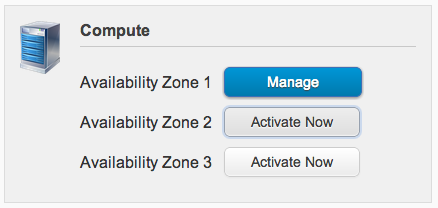
Until at least one is activated, you’ll have a tough time authenticating and it won’t be apparent why. (Or, at least, this was my experience.)

Once in, you’ll want to head over to the API Keys section to (you guessed it) get your API keys. Here’s an example of what it might look like (with randomized values):
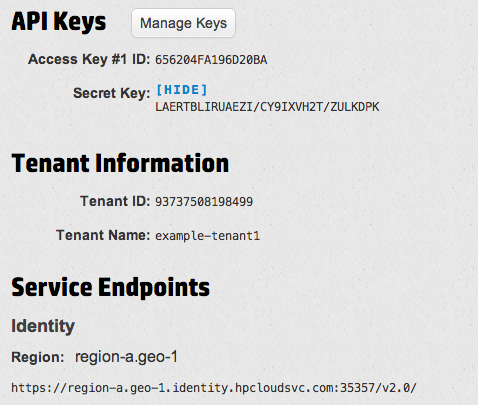
(Just to be clear, the keys and tenant information were artificially-generated for this screenshot.)

At the bottom is the Keystone entrypoint you’ll want to put in to set up the Provider:
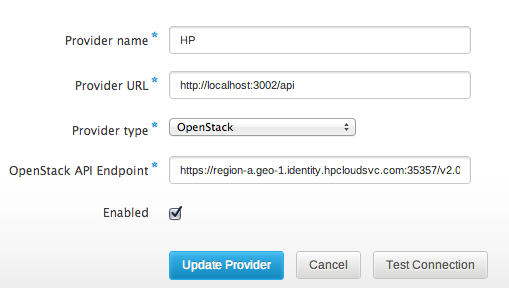
This much is straightforward. Adding a Provider Account is a little more of an adventure.

Despite what their documentation may say, the only way I’ve been able to authenticate through Deltacloud has been with my username and the tenant name shown — not the API keys, and not the Tenant ID.

In the example above, my Tenant Name is “example-tenant1”, with a username of “example”. So in Conductor, I’d want to enter “example+example-tenant1”, since we need to join username and tenant name that way. Password is what you use to log into the account.
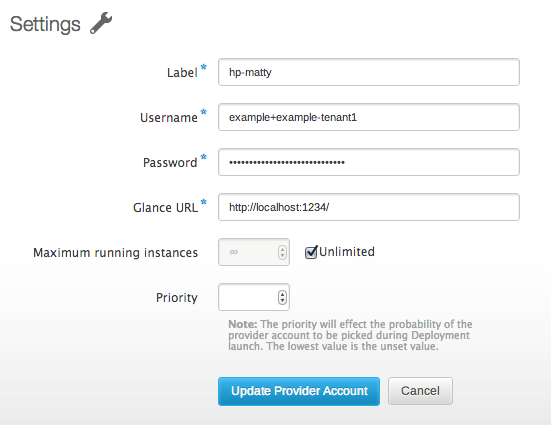
Here you’ll notice that I cheat — Glance URL is currently a required field in Conductor. As best as I can tell, HP Cloud does not currently expose Glance to users, so there is not actually a valid Glance URL available. I’ve opened an issue to fix this in Conductor, but for right this second I just used localhost:1234 which passes validation.

As this may imply, we don’t presently support building images for HP Cloud, either, though there’s work being done to allow snapshot-style builds (in which a minimal OS is booted on the cloud, customized in place, and then snapshotted). What does work today are image imports, though.

It took me a moment to figure out how to import a reference to an HP Cloud image, though.   If you view the Servers tab within an Availability Zone and click “Create a new server from an Image”, you’ll get a dialog like this:
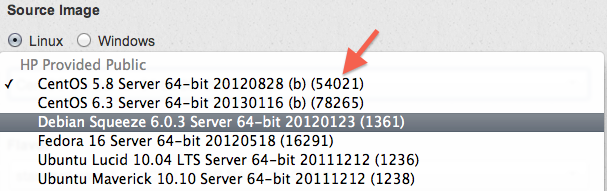
The orangey-red arrow point to the image ID — 54021 for the first one, 78265 for a CentOS 6.3 image, etc. These integers are what you enter into Conductor to import an image:
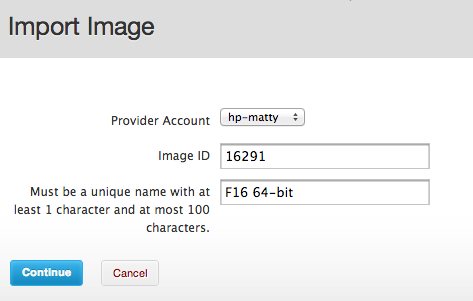
With an image imported, the launch process is just like with other providers, and you’ll be able to download a generated keypair and ssh in.

Of course, the job isn’t finished. The ability to build and push images is important for our cross-cloud workflow, and it’s something that’s in progress. And the Glance URL process is quite broken. But, despite these headaches, it works — I’ve got an instance running there launched through Conductor.
